This article is still a work in progress
What is RMPC and why RMPC
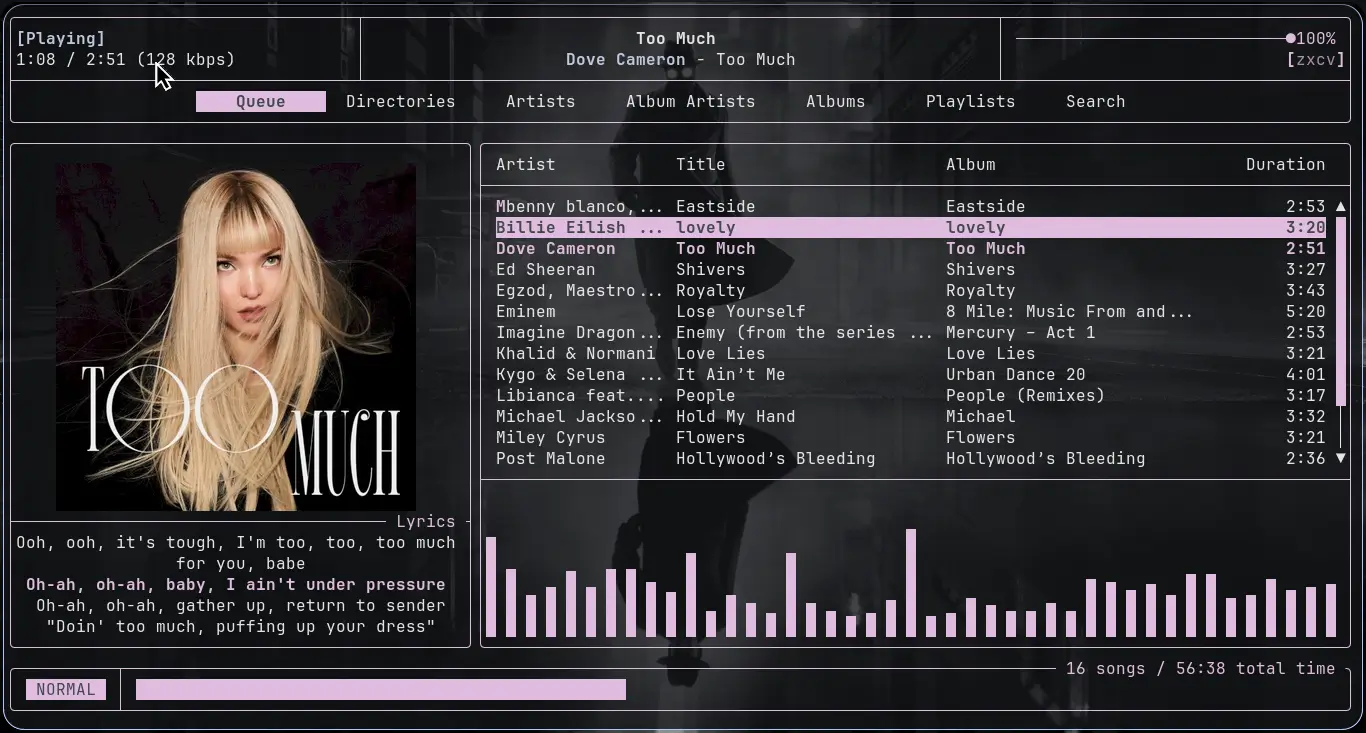
If you are a music lover, you probably have your preferred music player.Maybe it's Rythmbox because you found it preinstalled in your linux distro, or perhaps (God forbid) you are on windows and you use whatever it is windows people use nowadays. Why would you ever use rmpc, you ask, and what the foo is it anyway. Think of rmpc as your music player, but better! Anyway, it's in the terminal, has cool features and it's fun - that's why I use it. It's also written in Rust, so ... ( Yes, I am one of those people).
Technically, rmpc is a music player daemon (mpd) client. Think of MPD as the engine that will be responsible for providing a bridge between your music files and rmpc - the client. RMPC will enable you to perform music player actions - you know, the normal ones like play, pause, shuffle, create playlists etc. It also integrates well with other programs such as cava for visualizing music.At the time of writing, there is also a plugin system being written, which I think is going to make rmpc even more awesome. I should duly warn you that rmpc is not plug n' play.You will have to do some tinkering to get all the features working as expected.
RMPC Features
- Synchronized lyrics integration.
- Cava Integration (Cava is an audio visualizer)
- Album art. (You will need to use a terminal that supports images. I use ghostty.)
- Youtube music and playlists integration
- Plugin system. ( There are currently a few plugins including one for automatically download lyrics from lrc.net, given that your music files have the required metadata)
Installing required tools
We are going to need:
- mpd - The server
- mpc - To do 1, 2, 3
- rmpc - The client
- cava - For visualization.(This is not needed for rmpc, but I thought it would be a cool addition to demonstrate the coolness of it all)
- A terminal with image support.
I am on arch linux and I am going to provide installation steps for it. If you are on a different distro, use your package manager. If not available, you will have to build from source, or find an alternative method to install the package. If you are on Windows (sigh), you can try following through in WSL2 ( I haven't tested it though).
MPD
Let's start with mpd. It is the server that will fetch the music from our filesystem and make it available to clients such as rmpc. To install it on archlinux run.
sudo pacman -Syu mpd
Next, we will need to configure mpd so that it can find our music, index it and make it available to our client -rmpc. You can either configure mpd systemwide or per user. I wouldn't recommend going the systemwide way as it can prove to be quite a headache due to permission issues.
The user configuration for mpd is ~/.config/mpd/mpd.conf, so go ahead and create the file and open it with your favourite editor. You might have to create the mpd directory first.
   # Create the directory and the config file
   mkdir -p ~/.config/mpd/
   touch ~/.config/mpd/mpd.conf

   # Open the file in with your editor
   # I use the helix editor
   hx ~/.config/mpd/mpd.conf
There is a default configuration file located at /etc/mpd.conf, which you can use as a reference. You can also copy it into your user's config file and use it as a starting point.
At a minimum we will need a music directory, a db_file and an audio_output. Below is my config, which should work. If it doesn't work, I leave the troubleshooting to you. Also make sure you create the database file and the logfile.
   touch ~/.config/mpd/database

   touch ~/.config/mpd/mpd.log
Config file
db_file            "~/.config/mpd/database"

log_file "~/.config/mpd/mpd.log"


# This should be your music directory
# Change the path as necesarry
music_directory    "/mnt/Files/Music/"

audio_output {
   type   "fifo"
   name   "my_fifo"
   path   "/tmp/mpd.fifo"
   format "44100:16:2"
}
MPD autodetects your sound output by default, however if you later discover that you cannot control the sound through rmpc later, append the following to the config file to set a specific output - ALSA in this case.
audio_output {
    type    "alsa"
    # A very creative name
    name    "My ALSA Device"
    device "default"
    mixer_control "PCM"
    mixer_type      "software"
}
At this point, mpd should be able to discover you music. You first need to enable the service.
systemctl --enable --now --user mpd
Then confirm if it's actually running.
   # It should show that it's activated and running
   systemctl status mpd
At this point, we have our server running. ( If yours is crippled and unable to run then become the doctor and do some diagnosis)Next, we need to update the database and list the discovered files. If no files are found, make sure you updated the music directory in the config file.
# Update the database and list all music files found
mpc update
# then

mpc ls
If everything has worked to this point, you can actually run rmpc already and it will use it's default configuration. Try it out by running:
rmpc
RMPC is a TUI and is therefore very much keyboard centric. You can click around with your mouse or touchpad but... uh ... that's sacrilege. I would advise you get used to the shortcuts for a better experience. To get an overview of the shortcuts while in rmpc, type ? for a list of all the keybinds.
At this point you already have a fully working music player, but I hear you grumble and ask, where are the lyrics, where is cava, where is the art, where is the YouTube integration, where is the fuuuun?! (Now we're screaming?). Relax my fellow mortal, that's coming soon. You can also just go ahead and check out rmpc's documentation. Consider sponsoring them for making your life suckless.